
Overview
This guide walks you through securely redacting sensitive information from documents within the OPRA module and transferring the redacted document to requestors — all without leaving GovPilot.
Note: The redaction tool currently supports PDF documents (Adobe Acrobat) only. Image files and other non-PDF formats cannot be redacted at this time.
If you prefer, watch the training video:
Step-by-Step Instructions
1. Open the Attachments tab.Open your request form and navigate to its Attachments tab.
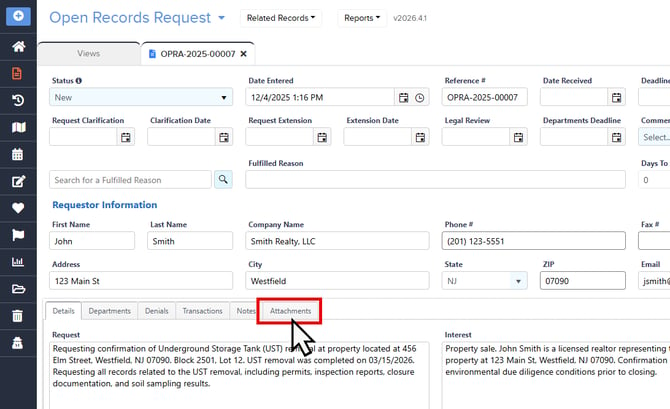
The Attachments Tab
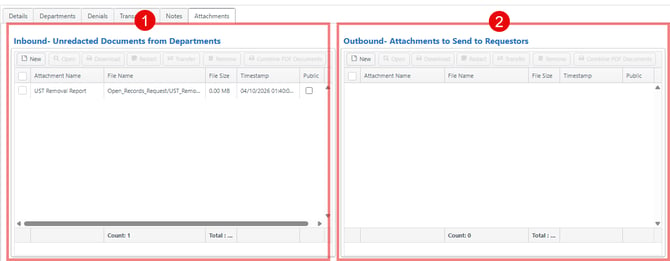
The Attachments tab has 2 sections.
- Inbound- Unredacted Documents from Departments - This is where files you upload or department-uploaded files appear.
- Outbound- Attachments to Send to Requestors - these documents will be sent to the requestor when the Status of the record is changed to Fulfilled or Partially Fulfilled. You want to make sure you review the list of documents here before fulfilling a request.
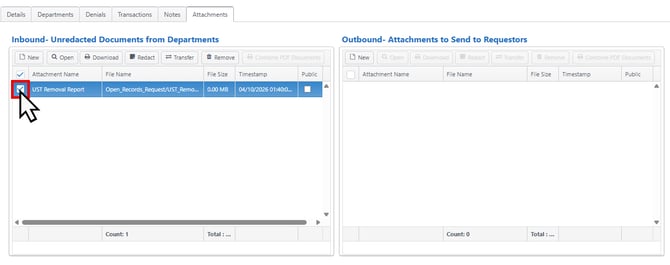
2. Select the document to redact.
Click on the checkbox of the document you need to redact in the file list of the Inbound: Unredacted Documents from Departments.
If this is a new document you’re uploading, first click New, then select and upload the file.
3. Open the Redaction Viewer
With the document selected, click the Redact button located in the menu bar directly above the file list.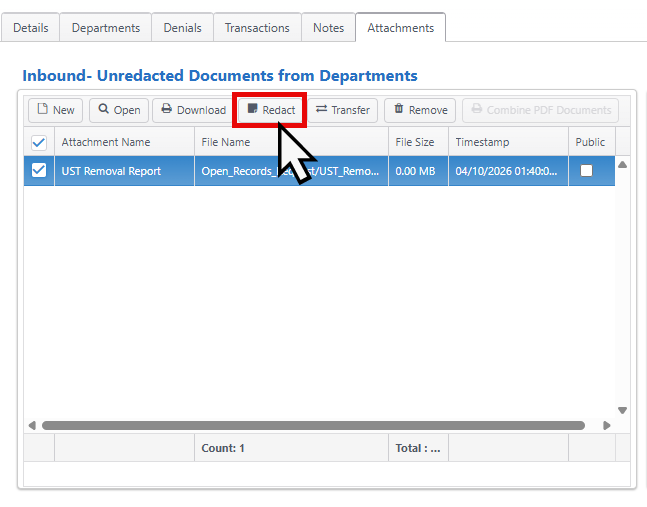
The document will open in the redaction viewer window.
The Redaction Viewer Window
(You can skip to Step 4 if don’t need a detailed breakdown of the window options)
When you click Redact, the document opens in the redaction viewer. The viewer has three tabs at the top: View, Annotate, and Redact. For OPRA redaction, you will primarily use the Redact tab (you’ll land there automatically).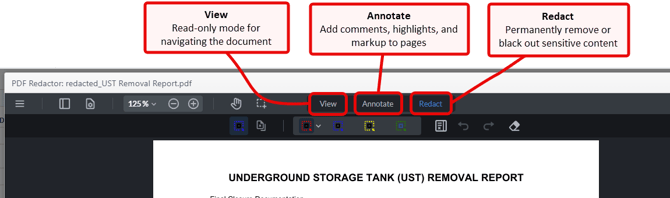
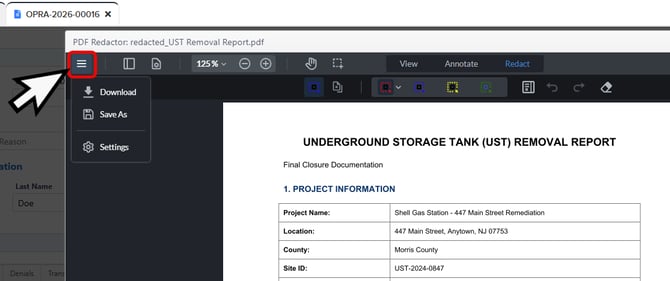
Menu (≡): Located at the top-left. Contains Download, Save As, and Settings.
Left Panel toggle: Opens a sidebar that displays page thumbnails, bookmarks, layers, and signatures for easy navigation within the document.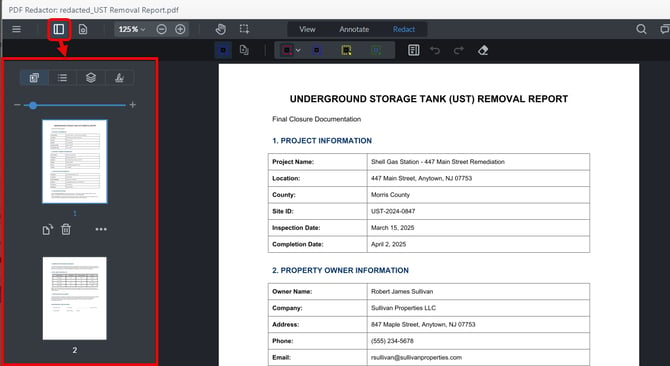
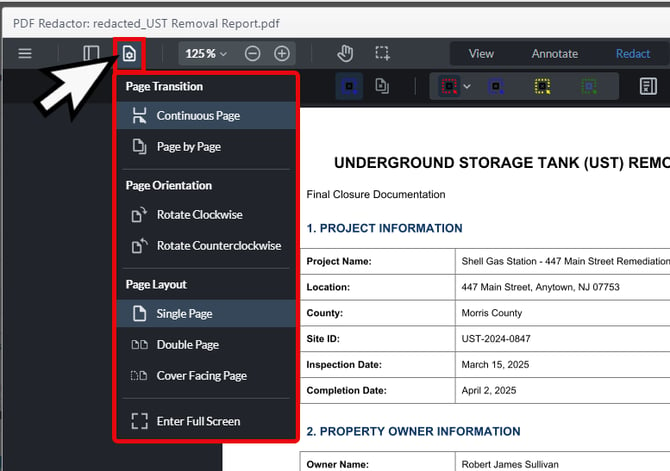
View Controls: Adjust how the document is displayed. Options include page transition (Continuous Page or Page by Page), page orientation (Rotate Clockwise/Counterclockwise), page layout (Single Page, Double Page, or Cover Facing Page), and Enter Full Screen.
Zoom: Use the Zoom In/Out buttons or click the percentage dropdown to select a specific zoom level (e.g., Fit to Width, Fit to Page, or a fixed percentage like 125%).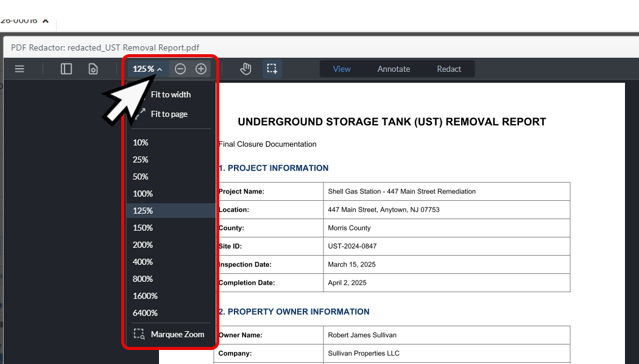
Pan and Select tools: Use the Pan tool (hand icon) to click and drag the document within the viewer. Use the Select tool (square crosshair icon) to select text or areas on the page.
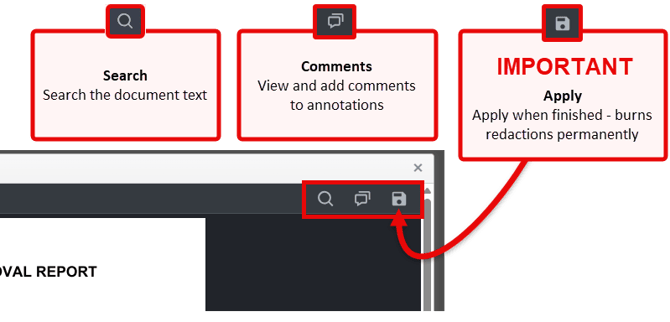
On the top right: Search (find text within the document), Comments (view and add comments to annotations), and Apply (saves and permanently burns in all redactions).
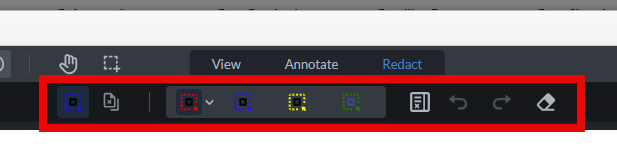
Redact Tab Tools — In the Redact tab, a second toolbar row appears with:
-
The currently selected preset (blue shown) will appear on the left.
-
Redact Pages
-
Color-coded presets (red, blue, yellow, green).
-
Redaction Panel toggle
-
Undo and Redo
-
Eraser
Configuring Presets
There are 4 configurable presets for marking redactions (red, blue, yellow, and green by default). Click any preset to select it, then click the dropdown arrow to configure its settings.
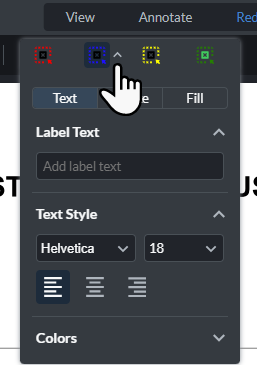
You’ll see three tabs:
-
Text: Add custom overlay Label Text (e.g., “REDACTED” or a legal exemption code), set the Text Style (font and font size), text alignment options (left, center, right), and select a text Color.
-
Stroke: Choose the color for the preset.
-
Fill: Choose the fill color for the redaction box.
Redaction Panel: As you redact, this panel will display all items you have marked for redaction on the right side. It also includes a search bar for redacting by keyword or patterns (credit cards, phone numbers, and emails).
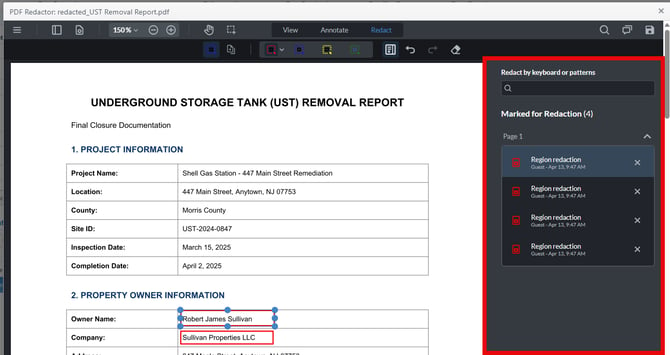
4. Draw a redaction box
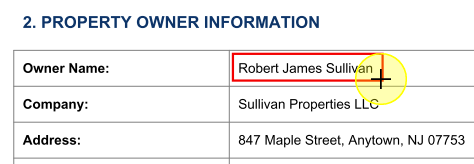
With your desired preset selected, your cursor will change to a crosshair (+). Click and drag over the text or area you want to hide to draw a redaction box. A redaction box will appear over the selected area.
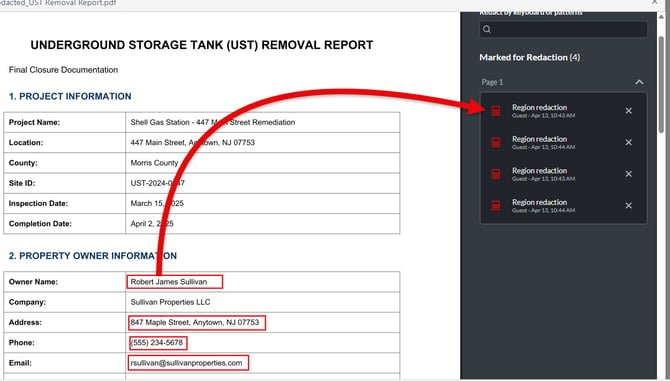
Once you draw a box, it appears in the Marked for Redaction panel on the right side of the screen.
Click a redaction box you’ve drawn and a customization menu will appear directly beneath the box.
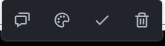
From here you can:
- Add a comment — Attach notes to the selected redaction box.
- Change preset options (Text, Stroke, Fill) — Update the overlay label, border color, and box fill style.
- Adjust fill color — Pick a different fill color for the box.
Click the checkbox in this menu to apply the redaction to that box. Or wait until you mark all redactions and apply them at once.
7. Repeat these steps for every redaction needed and review all items you have marked in the right panel before applying them.
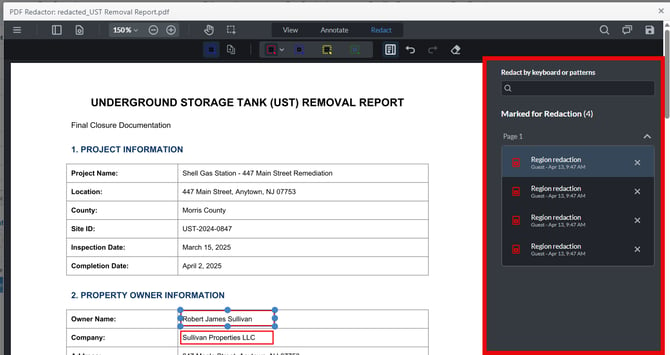
8. Apply the redactions
In the Marked for Redaction panel on the right, use the scroll bar to scroll all the way to the bottom. There you’ll find the Clear and Redact All buttons to apply all redactions at once (use Clear to remove all marked items if needed).
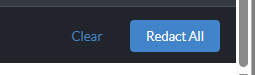
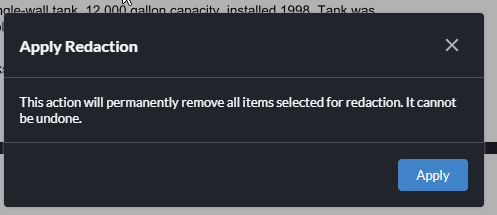
A confirmation dialog will appear. Click Apply to burn in the redactions in the viewer.
⚠️ IMPORTANT: changes are not finalized or saved to a new redacted copy until you complete the next step by clicking the Apply (disk icon) button in the top-right of the viewer.
Click the Apply button (disk button icon) in the top-right corner of the redaction viewer to finalize and save your changes as a new redacted copy.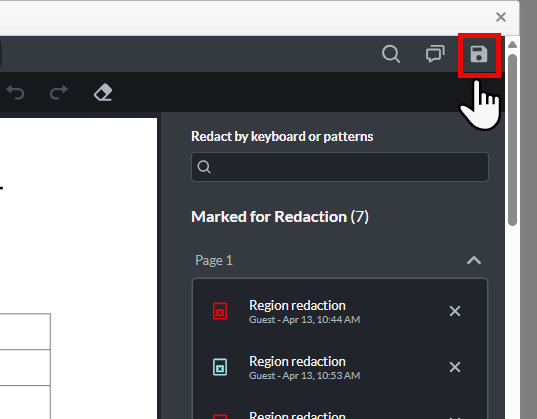
Back on the form, look at the Inbound attachment field. You will now see a new document in the list with "redacted_" added to the beginning of the file name (e.g., redacted_original_document.pdf) and the timestamp of when the redaction file was created.
Your original, unredacted document remains safely untouched in this folder.
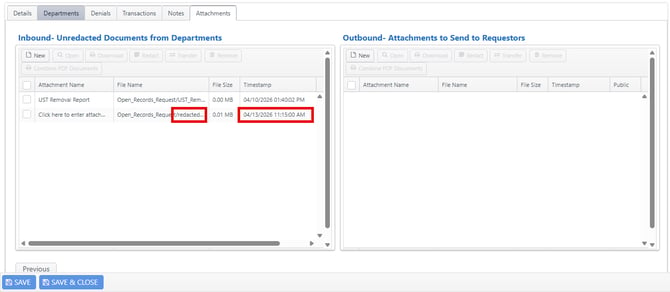
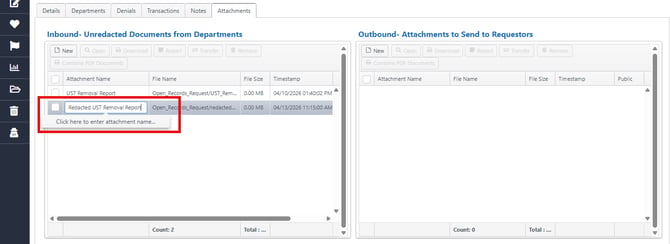
You may want to rename the file attachment here to identify it or add a version name. Click the file name to edit it and save the record to apply the change.
Click the checkbox to select the newly created redacted file. Make sure you are selecting the redacted copy, not the original. Click the Transfer button in the menu bar.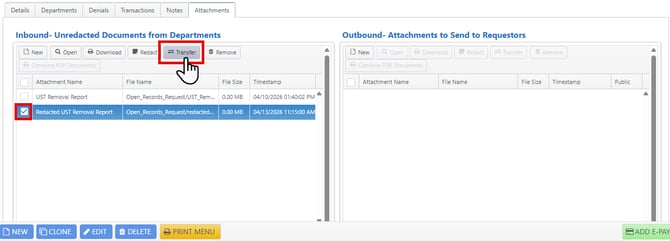
The redacted document will immediately move from the Inbound field to the Outbound: Attachments to Send to Requestors field.
12. Finally, remember to Save or Save & Close the form.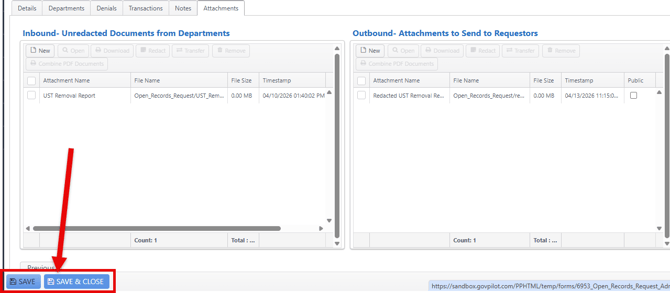
The attachments are now ready to be securely shared with the requestor when the OPRA is fulfilled.
⚠️ IMPORTANT:
- Attachments in the Outbound: Attachments to Send to Requestors section are only sent to the requester when the OPRA Status is changed to Fulfilled (or Partially Fulfilled)
- Redaction actions are recorded in the Log (Record History), including the user who performed the redaction and the date/time.
⚡ Save these Quick Steps
- Open: Navigate to your OPRA form and scroll to the Inbound attachment field.
- Select: Click the document you need to redact.
- Redact: Click the Redact button in the toolbar to open the viewer.
- Mark: Click and drag to draw redaction boxes over sensitive content.
- Customize (optional): Click a box to change its color or add label text.
- Apply the redactions: In the right-hand panel, click Apply and confirm.
- Apply (Save): Click the Save disk icon in the top-right corner.
- Transfer: Select the new "redacted_" file and click Transfer.
- Save the record.
Your redacted document is now in the Outbound folder, ready to send.