
The GovPilot Status page shows the live status of every GovPilot product: GovPilot, SDL Desktop Hosted, SDL Portal, Connect, GovSites and Hedgerow Hosted. If you subscribe, you'll be notified as soon as there's an incident or scheduled maintenance, so you don't have to check the page.
Before you begin: Go to the status page at https://govpilot.statuspage.io and click Subscribe to Updates in the top right. A panel opens with four icon tabs.
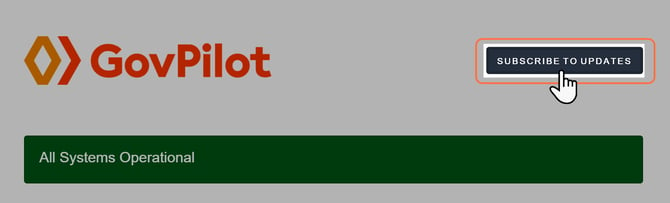
You can subscribe in four ways:
- Email: get an email when an incident is opened, updated or resolved
- Text message: get a text when an incident is opened or resolved
- Slack: incident and maintenance updates post to a Slack channel you choose
- Microsoft Teams: incident and maintenance updates post to a Teams channel you choose
Email is selected by default when the panel opens. To use a different option, click its tab. Each option is covered in detail below.
You'll get an email when an incident is opened, updated or resolved.
- Click the envelope tab.
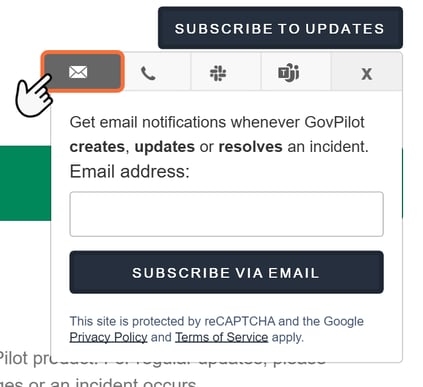
- Enter your email address.
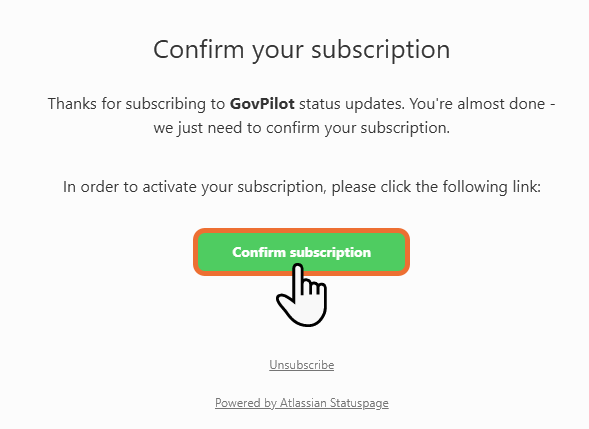
- Click Subscribe via Email, then open the confirmation email and click Confirm subscription.
Text message
You'll get a text when an incident is opened or resolved.
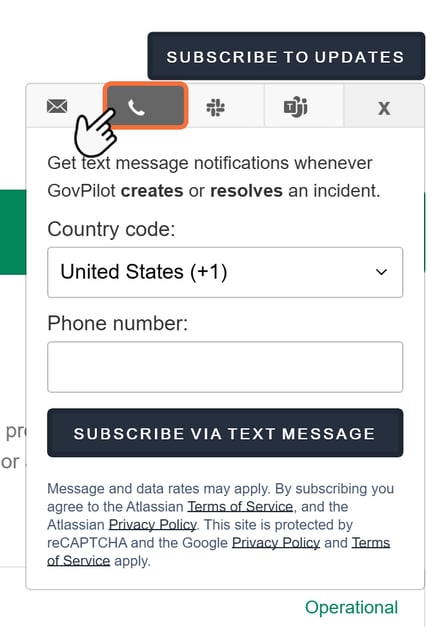
- Click the phone tab.
- Choose your country code.
- Enter your mobile number.
- Click Subscribe via Text Message, then enter the one-time code texted to you.
Heads up: Text alerts only cover when an incident opens and when it's resolved. For every update in between, use email, Slack or Teams.
Slack
Incident and maintenance updates post to a Slack channel you choose.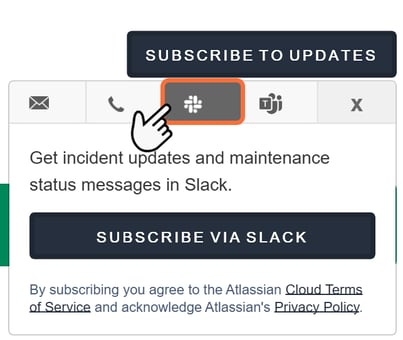
- Click the Slack tab.
- Click Subscribe via Slack, sign in to your workspace if prompted, and choose a channel.
Microsoft Teams
Incident and maintenance updates post to a Teams channel you choose.
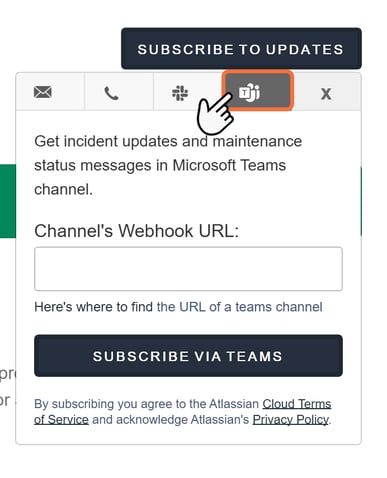
- Click the Teams tab.
- If you don't have a webhook URL for your channel yet, click the URL of a teams channel for setup steps, or ask your IT team.
- Paste the URL into Channel's Webhook URL.
- Click Subscribe via Teams.
Tip: Text alerts only cover when an incident opens and when it resolves. For every update in between, use email, Slack or Teams.
Troubleshooting
I didn't get the one-time code. Check your spam or junk folder for email codes. If it still hasn't arrived, wait for the timer to finish and click Resend OTP in the subscribe panel.
I don't know my Teams webhook URL. A webhook URL is a link Teams creates so outside services can post to a channel. Your IT team or the channel's owner can create one for you.
Slack won't let me add the subscription. Some workspaces require an administrator to approve new apps. Ask your Slack administrator to approve the request, then try again.
I want to stop or change my notifications. Every status email includes a link to manage or cancel your subscription.
Still need help? Submit a support ticket and our team will walk through it with you.