
Creating views in GovPilot helps you quickly filter, organize, and easily find the records most important to your workflow. You can customize fields, apply filters, group records, and more—then save that layout as a personal view for future use.
Steps to Create a View:
-
Open the Data viewer: Navigate to the Data viewer of the module you'd like to create a view for.
-
Start with a Base View: Select the "All" or any other existing view in the panel as a starting point.
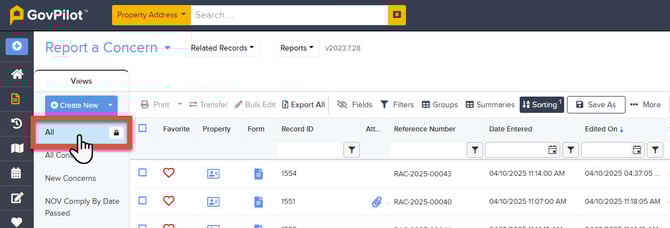
- Customize the following as needed:
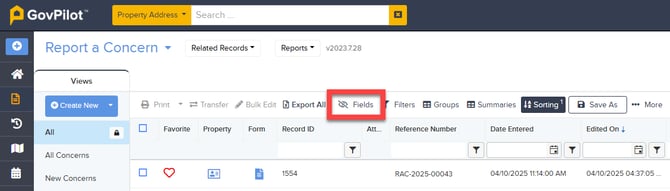
- Fields: Click Fields to select, hide, or rearrange columns visible in your view.
- Filters: Apply Filters to narrow down specific records.
(Note: The field must be toggled on in the Fields list first.)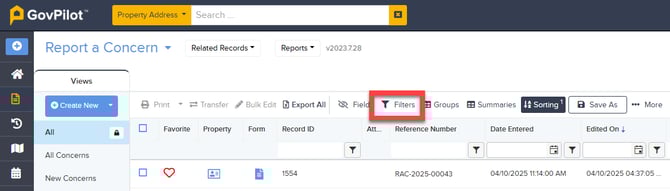
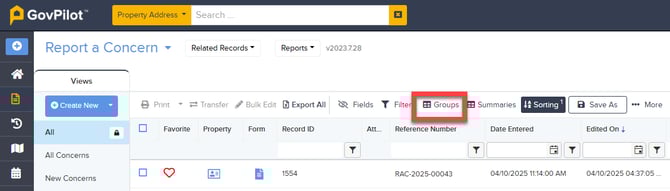
- Groups: Group records by specific fields.
- Summaries: Add summaries to columns to gain quick insights, such as counts, totals, or averages.
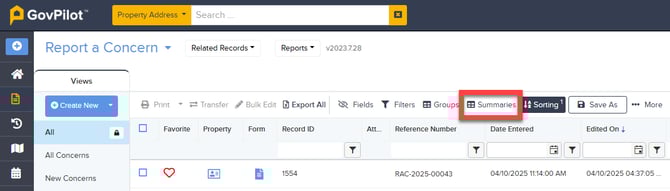
- Sorting: Arrange records in ascending or descending order based on selected columns.

- Fields: Click Fields to select, hide, or rearrange columns visible in your view.
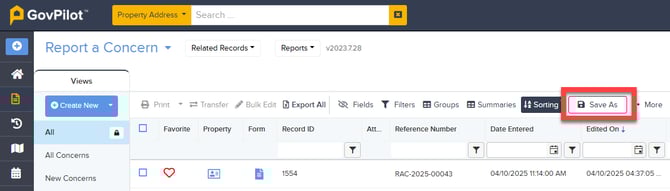
- When you're happy with your view, click Save As.
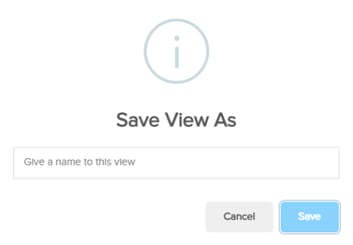
- Give the view a meaningful and unique name and click Save.
⚠️ Important:
If you did not start from the All view, clicking Save will overwrite the current view. To preserve the original, always click Save As and give your new view a unique name.
Best Practices:
- Use clear, descriptive names for your views to easily recognize their purpose.
- Regularly update or delete unused views to keep your dropdown organized.
- Create views that reflect your daily tasks or regular reporting needs for quick efficiency
Additional Resources:
- GovPilot Academy Interactive Video: Create a Module View
- GovPilot Academy: Exploring the Data Viewer
Related search terms: Create a new view, module view, filter records, organize data, custom views, sort records, filter modules, group records, data viewer customization, save filters